Pair once, then use the tabs: Mouse (trackpad), Keys (full keyboard), Num Pad (with a stand-alone calculator), Macros (record and replay), Shortcuts (one-tap buttons, dials and a trackball), Slides, Browser, Windows, Game and Media. The menu holds the theme, import and export of .mti files, presets and Auto-lock. It works without internet, and the PC needs no software.
Pair once
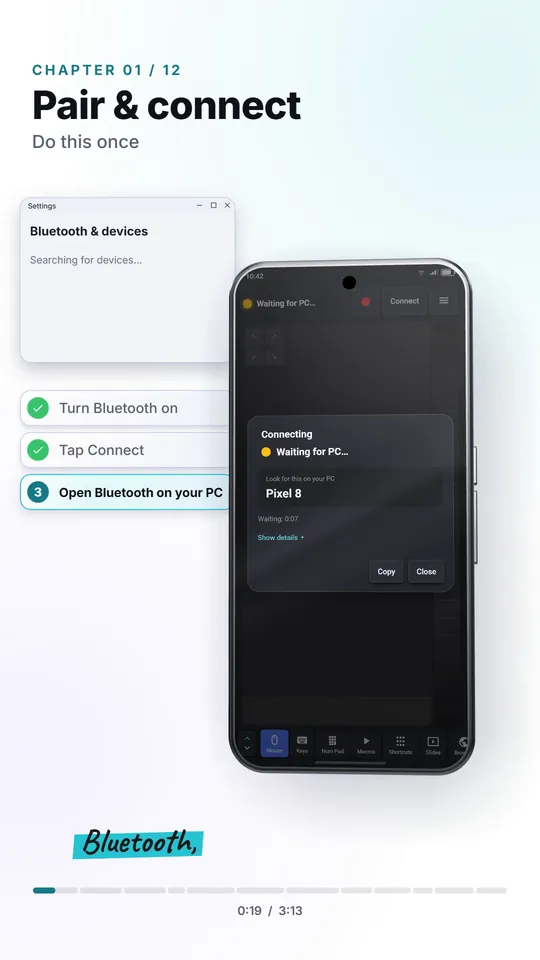
Turn Bluetooth on and tap Connect. The app waits and shows the name to look for. On Windows, open Settings, Bluetooth, Add device, Bluetooth, and pick your phone's name. Green means connected, and next time it reconnects by itself. If the phone was paired to the PC before as a plain Bluetooth device, remove that pairing first. The pairing guide has the details, and the fix list covers problems.
Mouse
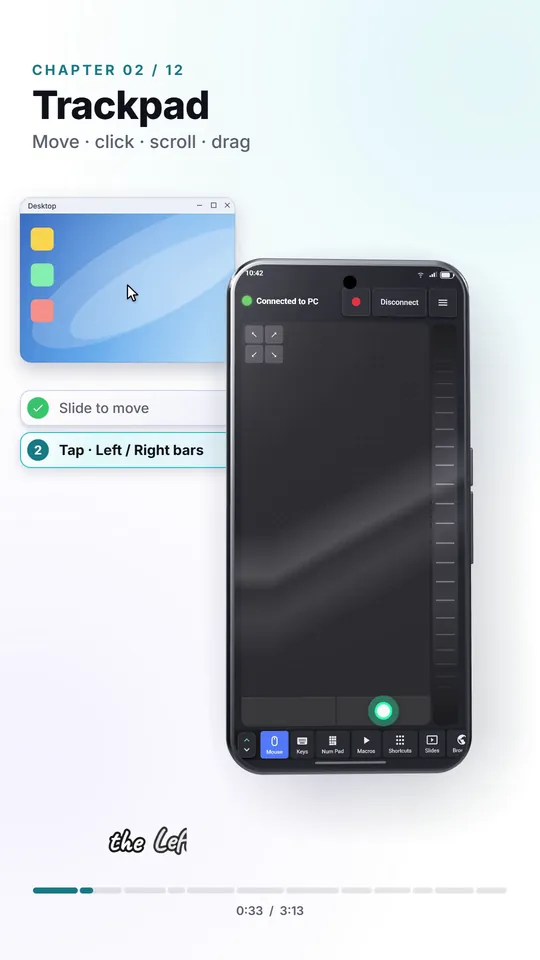
Slide a finger to move the cursor. Tap to click, or use the Left and Right Click bars. Scroll with the wheel on the right, or two fingers. Hold the left bar to drag, and tap it again to let go. Corner buttons send the cursor to a corner of the screen.
Keys
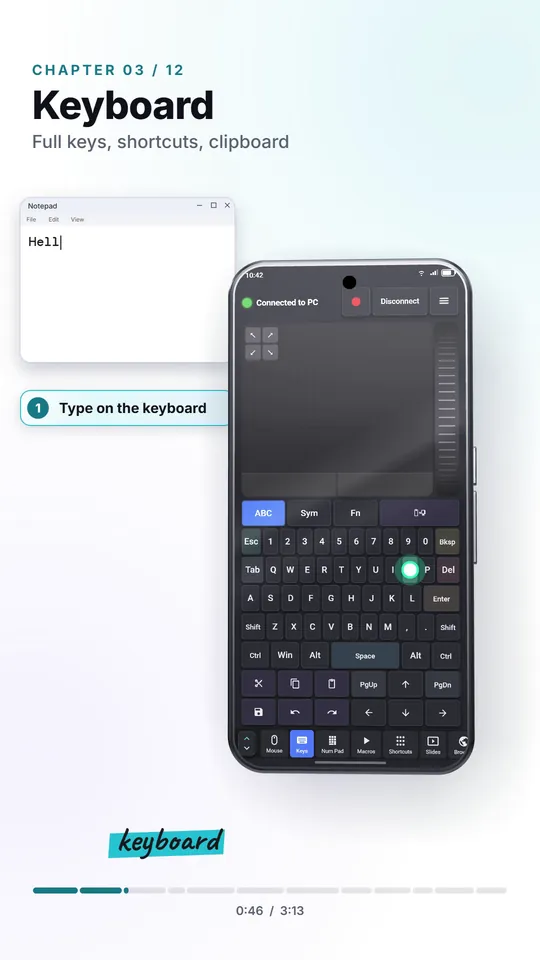
A full keyboard with a trackpad above it. ABC, Sym and Fn switch pages for letters, symbols and F-keys. Tap Ctrl, Alt, Win or Shift and then a letter. Quick keys give cut, copy, paste, save, undo, redo and the arrows. The clipboard key sends text copied on your phone to the PC. See the clipboard guide.
Num Pad
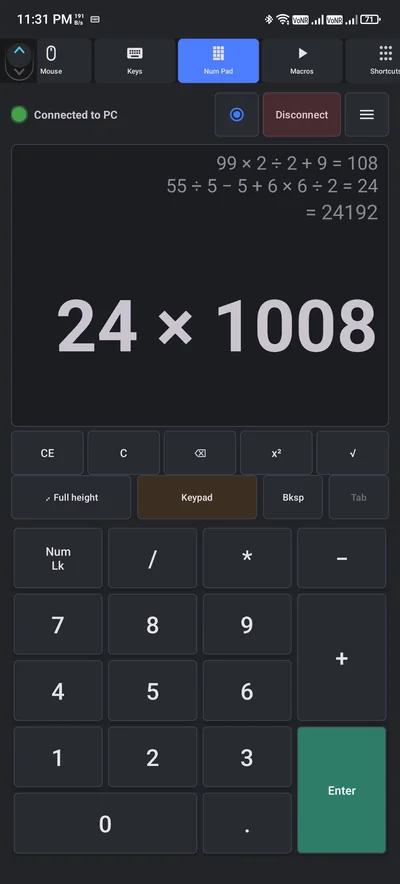
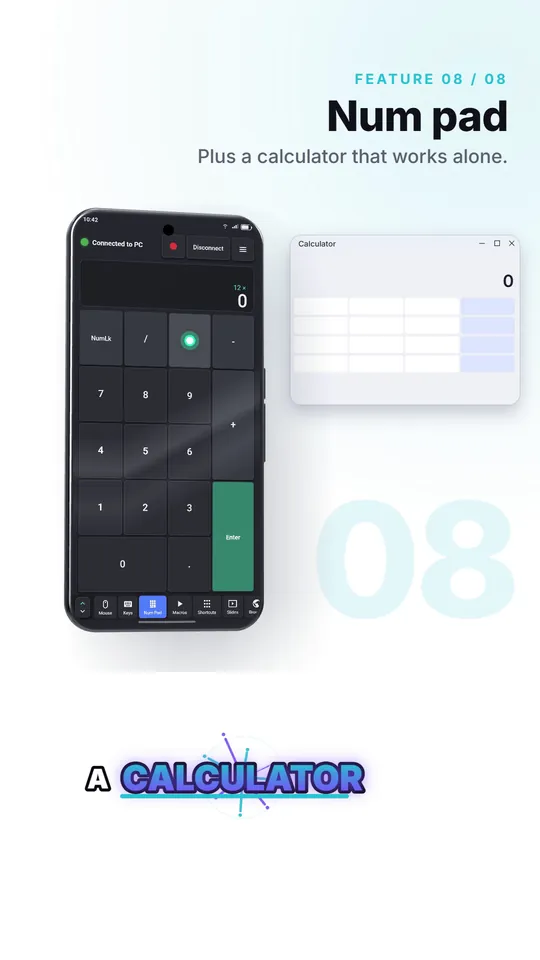
A full number pad for spreadsheets. Switch to calculator mode and it works without a PC, with a running history above the answer.
Macros
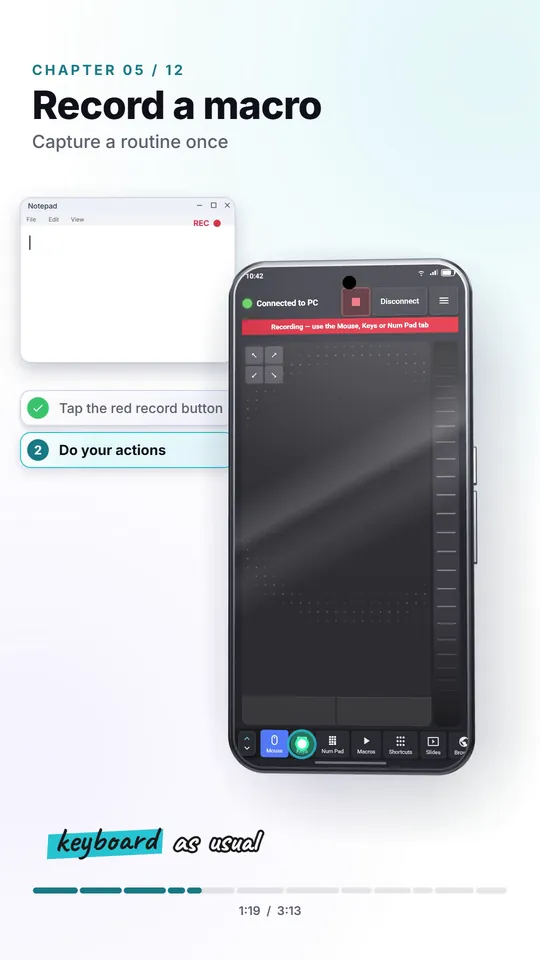
Tap the red record button, use the trackpad and keyboard as usual, and it records everything. A red banner shows it is recording. Tap Stop, name it, pick an icon and save. Play once or in a loop, set a delay and a stop timer, and add an optional beep. Pause, stop, or tap Background to keep playing with the screen off. Long-press to rename, delete or export. Tags make pages and you can show one to three columns. See the one-tap routine guide.
Shortcuts
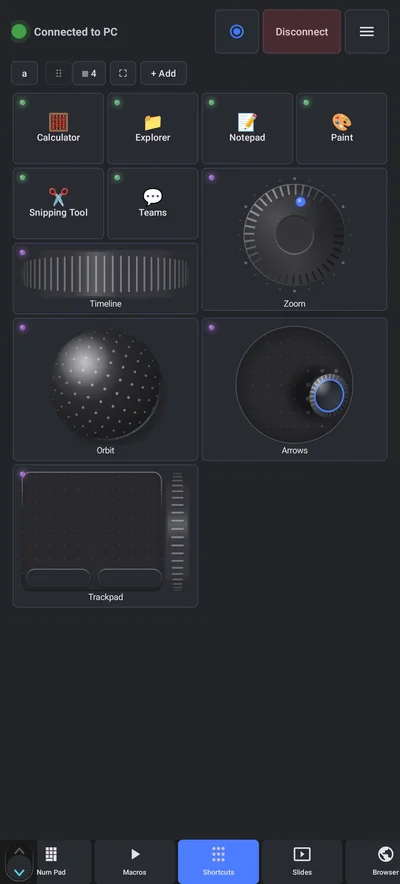
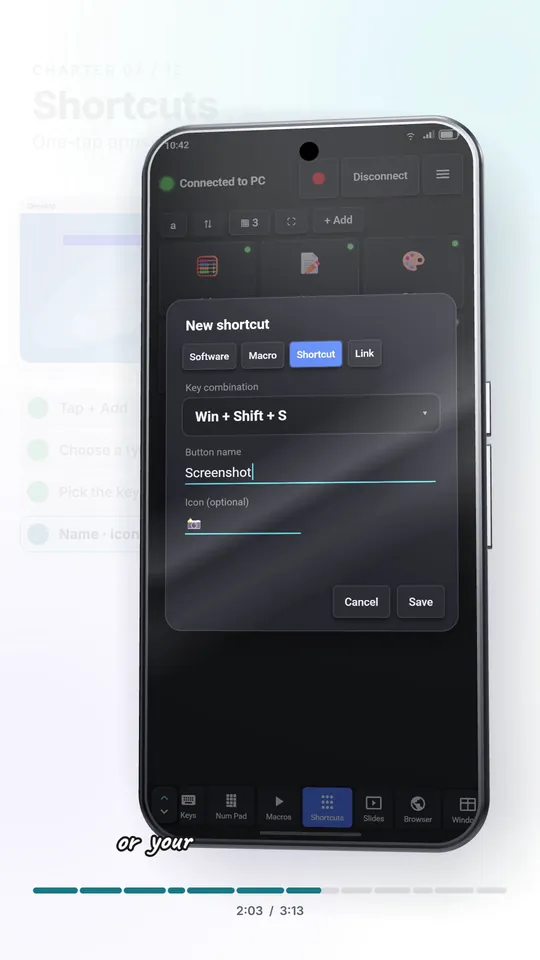
One-tap buttons. Tap Add and pick a type: software, macro, key combo or link. For key combos choose from the Windows shortcut library. Name it, pick an emoji or your own image, and save. Tap to run, long-press to edit. Cells can also be a dial, joystick, trackball, roller or a trackpad, and you can bind any key pair, such as Ctrl plus and minus for zoom. Full screen makes a launcher pad that you can rotate and add a clock to. See the macro pad guide.
Slides, Browser, Windows, Game and Media
- Slides is a presenter remote: start, next, laser and pen. See the presenter guide.
- Browser has tabs, back, refresh, zoom and find.
- Windows holds lock, sleep and snap. Shut Down asks you to confirm.
- Game is a game pad with sticks, buttons and triggers.
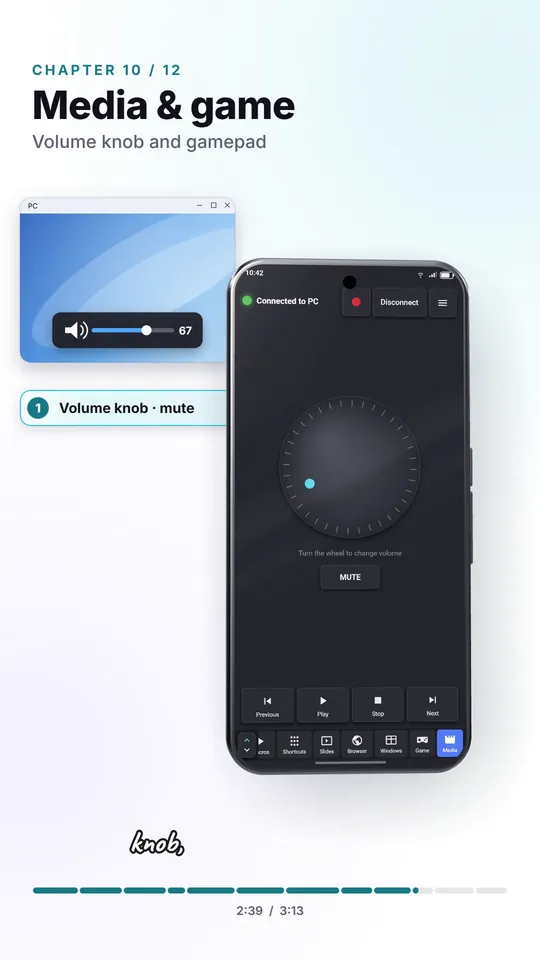
- Media gives you a volume knob, mute and playback. See the volume guide.
The menu
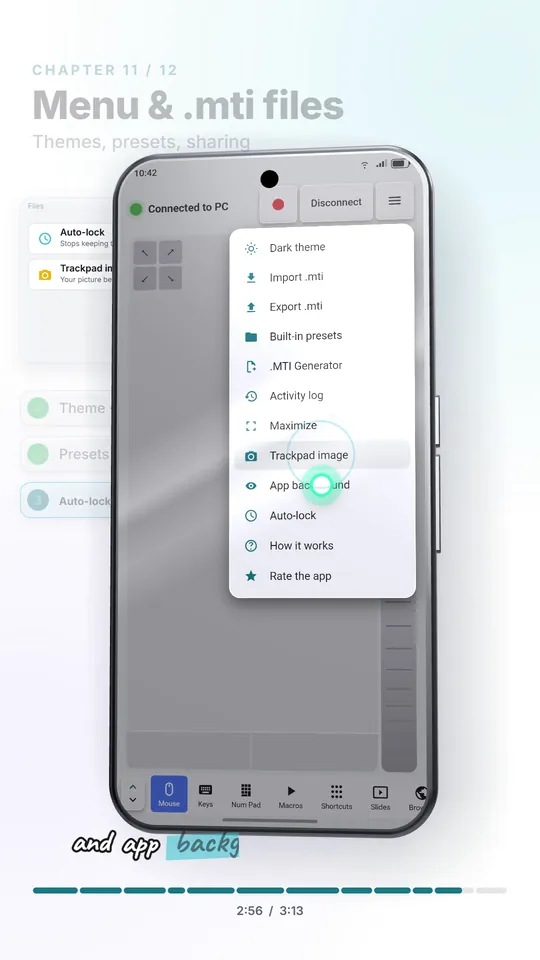
The menu has your theme, light or dark, plus import and export of .mti files, the built-in presets, the online MTI Generator, Auto-lock, a trackpad image and an app background to make it yours. There is an Activity log, a link back to How it works, and the Privacy Policy, Terms and Data Safety. See the .mti guide.
One tip for reliability
Keep the app open and allow it to run in the background. If a battery saver closes it, the app shows a notice and a quick fix. Bluetooth, typing, macros and shortcuts need no internet, and the app is free, supported by ads, with one short video buying a day without them.
Questions people ask
What is Never Away?
A free Android app that makes the phone a Bluetooth keyboard and mouse for a Windows PC, with macros, shortcuts, a presenter remote, a volume dial and a game pad. Nothing is installed on the PC.
Does Never Away work without internet?
Yes. Bluetooth, typing, macros and shortcuts work without internet. Ads need a connection to load.
Do I need to install anything on my PC?
No. Windows sees the phone as a normal Bluetooth keyboard and mouse.
Does it work on a Mac or iPhone?
No. It is an Android app (Android 12 or newer) made for Windows PCs.
Is it free?
Yes. It is supported by ads, and one short video gives you a day without them.
Can I share my macros?
Yes. Export them as a .mti file and import them on another phone.
Keep reading
Take the tour on your phone
Never Away is free on Google Play. Pair once and everything here is a tap away.
For reference. Steps and screens described here are as they appear in Never Away and in Windows at the time of writing, and menu names can differ between versions of Windows, Android and other software, so test any setup before you depend on it. Never Away is an independent app by Trishunya Infotech. Windows, Microsoft Teams, PowerPoint, Excel, AutoCAD and Bluetooth are trademarks of their respective owners and are named only to describe what the app works with. Follow your employer's IT and security policies when you use any tool on a work computer.